Teaching Without Barriers
4.53 / 2.53
•
Released on
•
Screen Sharing
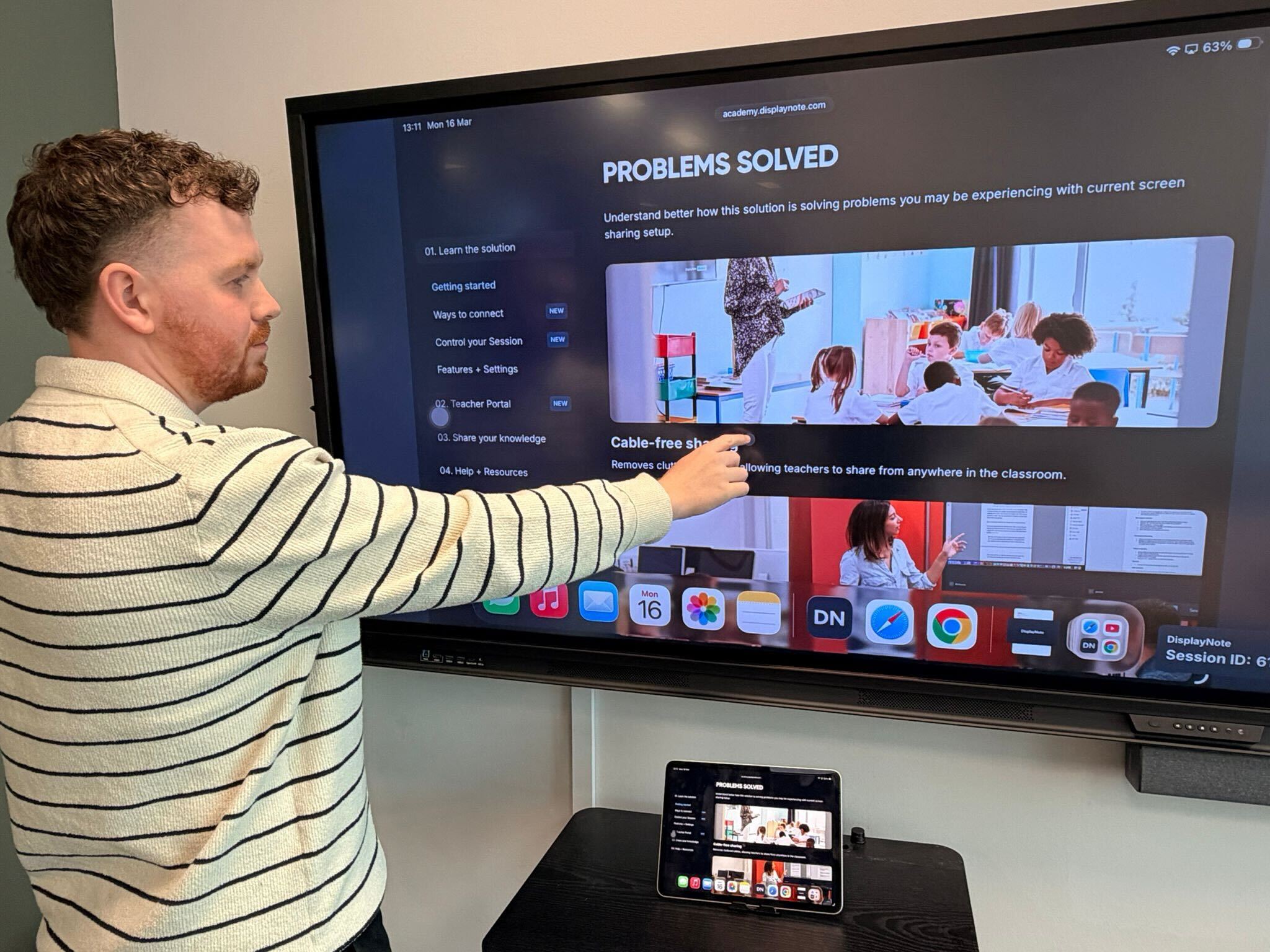
AirPlay Touchback
Control your iPad directly from the display
You can now control an iPad directly from the classroom display when sharing via AirPlay.
Once connected, teachers can interact with their iPad apps right on the main screen, making it easier to navigate lessons, advance slides, annotate content, or explore apps without returning to the iPad.
This creates a more natural teaching experience, giving teachers the freedom to move around the room while keeping the lesson front and center.
How it works
To enable AirPlay Touchback on iPad:
Open Settings → Accessibility
Turn on AssistiveTouch
Inside AssistiveTouch, enable Mouse Keys
To connect:
Start sharing your iPad screen using AirPlay (Screen Mirroring)
Open the display menu on the left hand side and select Touchback
Accept the Bluetooth connection prompt
On the iPad, go to Settings → Bluetooth
Select the display from the list of available devices.
When connecting for the first time, a pairing code will appear on both the display and the iPad. Confirm that the numbers match to complete the connection.
Once connected, the iPad can be controlled directly from the display.
Please note
Only one iPad can be connected to a display at a time
If switching iPads, disconnect the previous device first
AirPlay Touchback is available on iPad and displays running Android 12 or later
Help & Resources Now Available in the Web Client
Moderators using the web client can now access Help & Resources directly within a session.
This makes it easier to quickly find guidance or training without interrupting the flow of the session.
From the Help & Resources panel you can:
Access the Learning Academy
View the latest What’s New updates
Discover helpful guides and support materials
Accessibility Improvements
We’ve made improvements to ensure DisplayNote Screen Sharing works better with screen readers and assistive technologies.
These updates support EEA accessibility requirements and help create a more inclusive experience for users who rely on accessibility tools.
Additional improvements will continue in future releases.
Bug Fixes & Improvements
We’ve resolved several issues to improve stability and reliability, including:
Fixed a crash when streaming Netflix via AirPlay
Fixed an issue where the receiver could crash if network access changed
Fixed an issue where the Windows Receiver failed to launch
Improved stability when network connections were interrupted
Fixed a missing loading screen when reconnecting via the web client
Restored the Stop Presenting button when sharing to a Windows receiver
Fixed an issue preventing remote control from accessing USB storage
Resolved a black overlay when sharing Chrome tabs via the web client
Addressed issues affecting EDLA certification validation
Fixed a configuration issue with Unlimited Connections on Windows Receiver